



Automate Artwork
The unattended half: what runs nightly, and from where.
- Source priority — an ordered list of sources per library. Highest rank wins and overwrites those below it. A source not on the list is never used.
- Uploader priority — for ThePosterDB and MediUX, which uploaders may be used and in what order. Pasting a URL applies it once; what happens afterwards follows this list.
- Enrolment — per-show set enrolment; a per-show enrolment outranks the default. Scanning saves nothing — you pick which finds to enrol.
- Auto-create — generate art from your own templates for anything with no source art. Backgrounds and title cards have their own daily jobs; a finished title card is never re-texted, and existing cards are left alone.
- Upkeep — pruning, auto-removal and the no-file/enrolment rules. The settings themselves live in Settings → Automation → Artwork.
Rules that hold everywhere in artwork
- Art you applied by hand, and MediUX cards, are never replaced by a scheduled job.
- Your own folder assets win over generated art.
- Overlays keep a clean copy of each poster so badges can be redrawn without re-downloading; removed titles are cleared nightly.
Auto-Scrape: uploaders and their sets
| Control | What it does |
|---|---|
| Sort this list | How the list is ordered on screen. Priority is the order that decides which set wins a title two of them cover. |
| First / second arrows | Appear when two sets are tied for the same title at the same rank. They break the tie. |
| Rescan | Re-reads every set already on the list, on both sites, and puts any new or changed posters onto your library. Adds and removes nothing from the list. |
| Update list | Walks your ranked uploaders on both sites: enrols sets covering titles you hold, unenrols ones your settings no longer allow. Fetches no art. |
| Exclude | Marks a set as one Kustos may not use on its own. Excluded sets stay listed, because an exclusion is a choice worth seeing rather than a deletion. |
| Remove an uploader | Removes everything hanging off them on that tab — rank, options, indexed posters and enrolled sets, each set's art released as if you had removed it by hand. Your exclusions are not touched. |
| Switch to manual | Keeps the uploader and their sets but stops their art being applied on its own. It stays there to pick from by hand. |
| Poster variant (ThePosterDB) | All variants, With title or Textless only. ThePosterDB publishes titled and textless cuts separately; a skipped poster leaves the slot to your folder art. |
| Find sets (Find title-card sets for my shows) | Walks your shows and picks the best MediUX card set for each — preferred uploaders first, then the set with the most cards. Looking is free; nothing is enrolled until you press Enrol N sets. |
| Boxsets | Re-checked each run, so new and newly-owned members get enrolled. Removing a boxset only stops re-checking — sets it already added stay. |
Two states that look like problems and are not.
Enrolled, not on a slot means the set is enrolled but holds nothing right now — usually another set or source won those titles, sometimes the slot is simply empty. It is still enrolled and takes a slot the moment it wins one.
MediUX art applied, no set enrolled means the art is there but nothing re-scrapes it. Enrol a set from the title's Artwork page if you want it kept up to date.

The ranked order is the whole story. The best-ranked set that covers a title owns it, and a set never takes one over by waiting. There used to be a seven-day rule underneath the ranking that let a lower-ranked set claim a title it came to cover completely; it was removed, so a set no longer changes hands without somebody changing the ranking or excluding a set by hand.
Auto-Create: logos
These decide which wordmark a template gets, and they are applied in a fixed order — language first, always.
| Setting | What it does |
|---|---|
| Language (logos) | Which language's wordmark to prefer. It never costs coverage: a title whose only logo is in another language still gets it, because the ranking falls through rather than filtering out. |
| Prefer coloured logos over white | Takes a mark with colours of its own first; a white or light one is the fallback. Applied after the language preference, never instead of it — a correct-language logo is never traded for a better-looking one in the wrong language. |
| Never use black logos, even if it leaves the slot empty | A black-on-transparent mark is invisible on a dark plate. On, a title whose only logo is black gets none and appears on the logo worklist to fix by hand. |
| Prefer long wordmarks over short, tall ones | Templates draw the logo into a wide band, so a square emblem is shrunk until its height fits and sits small in the middle. This takes the longest mark a title has. It never refuses one, never overrides the language preference, and costs nothing — the shape comes from the image's recorded size, so nothing is downloaded to decide. |
Auto-Create: backgrounds
| Setting | What it does |
|---|---|
| Fill backgrounds | Off, the nightly run leaves backgrounds as Plex has them. |
| Which sources | Only titles no poster template covers. Draws from TMDB, Fanart and TheTVDB, plus MediUX set backdrops when Also use MediUX set backdrops is on. It replaces whatever Plex shows on a title Kustos has not set a poster for — including one you chose in Plex itself. |
| Textless only / Text only | TMDB, Fanart and TheTVDB publish a language per image, so they can honour this. MediUX does not, so its backdrops rank last whenever either is set — they fill what the others cannot answer. On Any, all four compete equally. |
| Language (backgrounds) | Only applies to a backdrop with the title baked in; a textless one has no words to be in a language. |
| No fallback | A title with no matching backdrop goes to the worklist. Drop a background.png in its Uploads folder to override. |
| Reset & re-grab all | Forgets which backgrounds Kustos applied, so the next run re-picks every title. Nothing changes on Plex until that run. Backgrounds you set yourself are kept; posters and title cards are untouched. |
Auto-Create: title cards
| Setting | What it does |
|---|---|
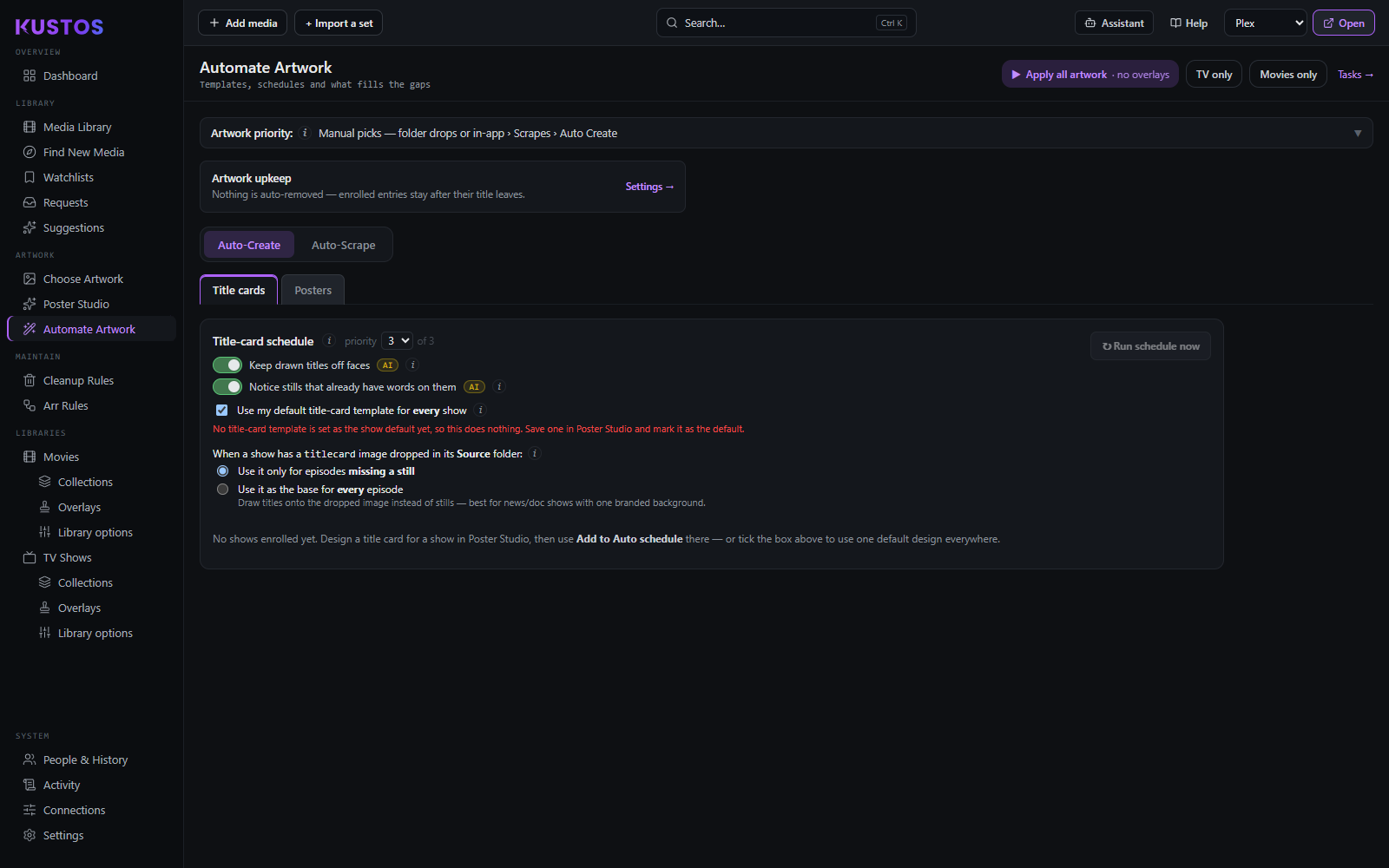
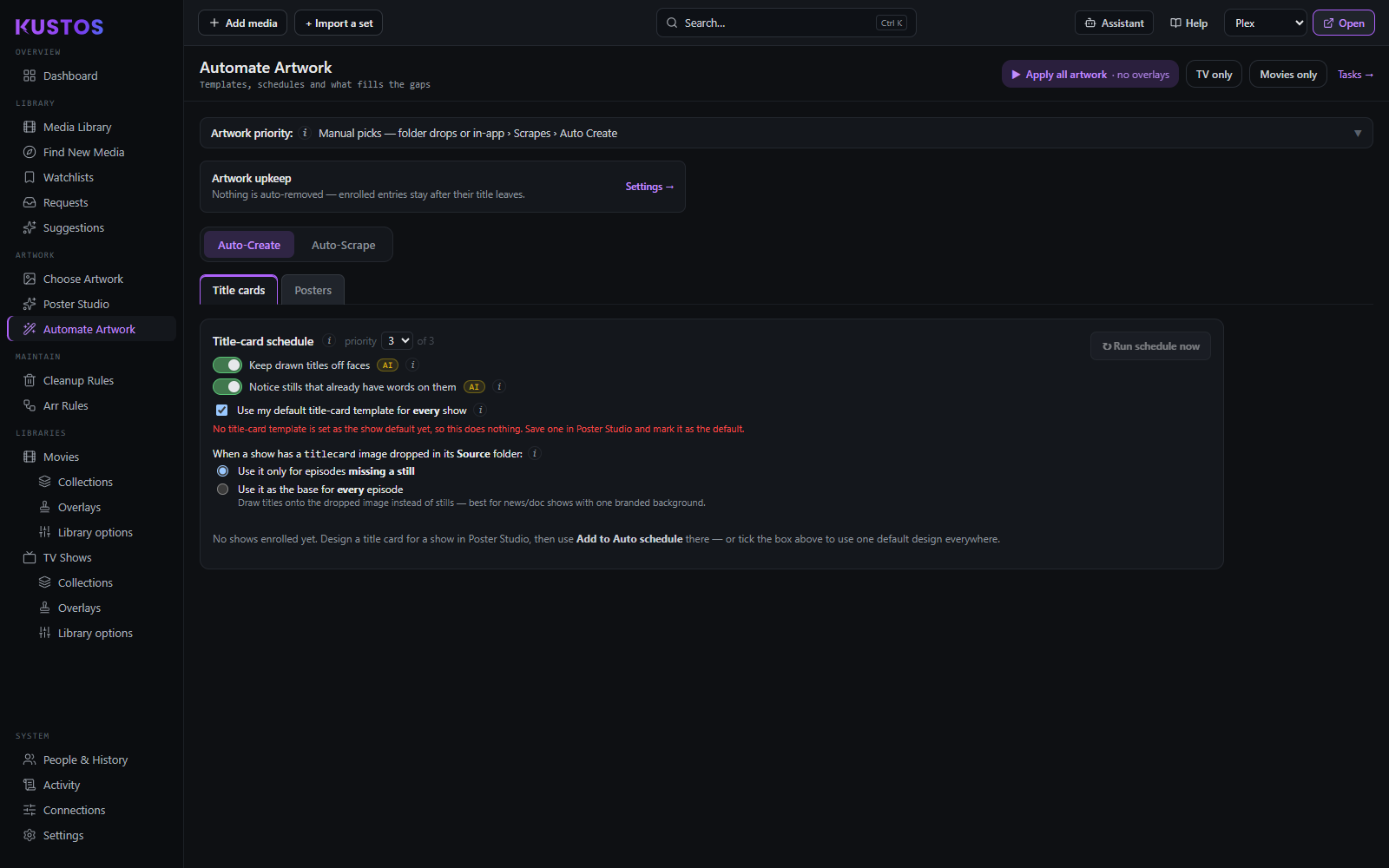
| Title-card schedule | Runs daily on new or missing episodes only — existing cards are left alone. |
| Use my default title-card template for every show | A per-show enrolment outranks it. It never replaces a MediUX card or one you picked by hand: an episode a set covers is left to the set. |
| When a show has a titlecard image dropped in its Source folder | Use it only for episodes missing a still, or Use it as the base for every episode. A finished card is never re-texted. No effect on shows with no dropped Source image. |
Which template gets used
Templates are matched by their own rules — kind default, or pinned collections and labels — set in Poster Studio → My Templates, not here. See Poster templates.
Couldn't build lists titles that matched a template but had no source art. Rows clear themselves once a later run succeeds, so an empty list means everything templated actually got built.
Per-library
A library switched off here is skipped entirely and never appears in the worklist.
"First one there wins" is the opposite of ranking: with it on, whichever source arrives first keeps the slot and the order is ignored.
Apply all, and Re-apply (force)
Two buttons that look like the same button.
| Button | What it does |
|---|---|
| Apply all overlays | Draws every overlay you have set up — presets, custom rules and collection overlays — onto every poster, and skips posters already up to date. |
| Re-apply (force) | Re-renders and re-uploads every poster from its clean base, including ones that look unchanged. |
Use force after changing an overlay's settings. A settings change does not always make a poster look out of date to the skip check, so the ordinary apply can pass over exactly the posters you just changed the rules for.
How the pieces sit together: badges stack at a shared anchor and scale with the poster; a banner spans the full width and badges clear it. An uploaded image scales by its own pixels, not the poster's — so the same overlay lands differently on a poster of another size, which is the usual reason a custom one looks wrong.
Scale is relative to the overlay's default, where 100 is the default size.