



Backups
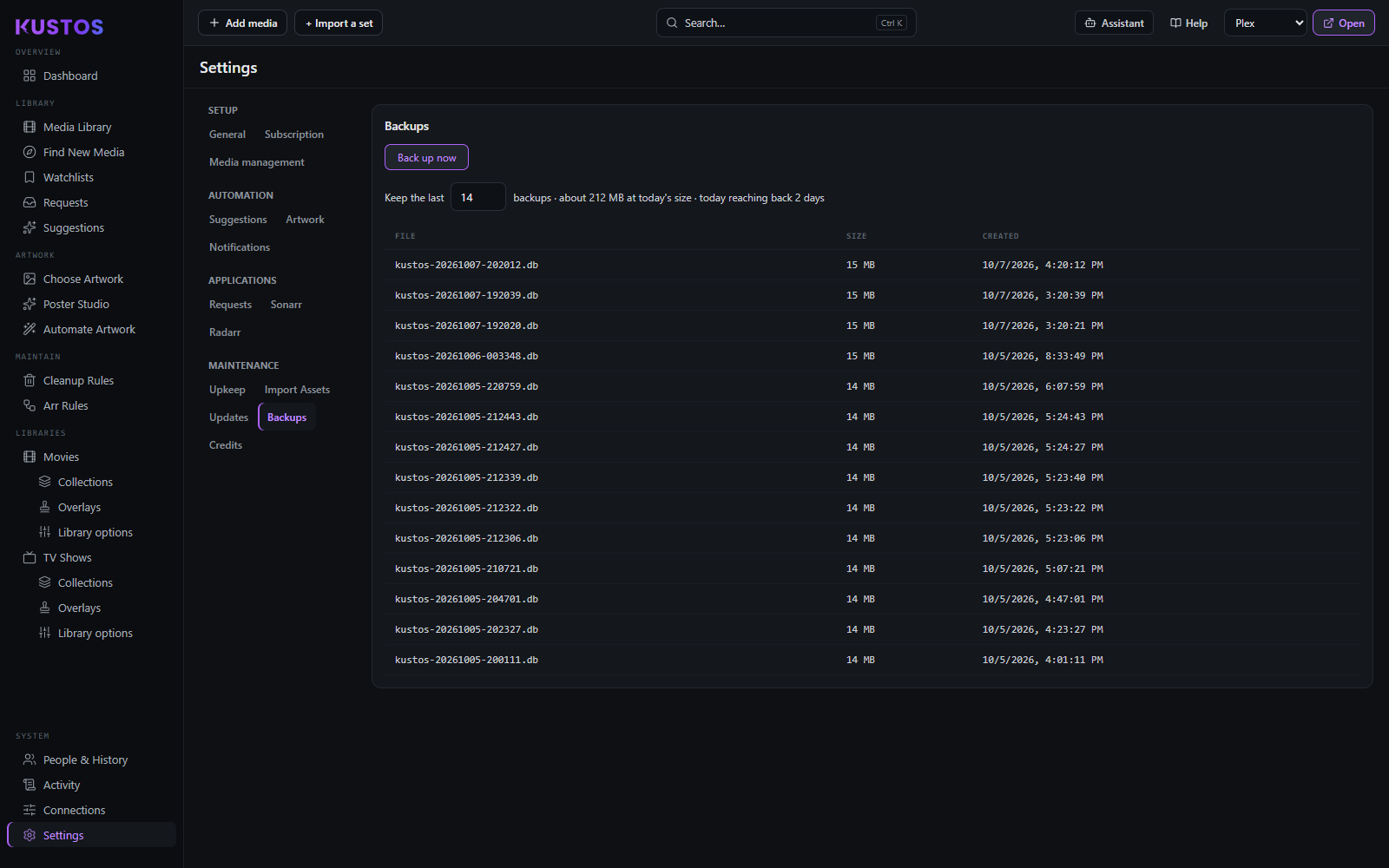
| Setting | What it does |
|---|---|
| Back up now | Takes a database backup immediately. |
| Keep the last N | How many backups to retain. Older ones are deleted after each scheduled backup. Everything in the backups folder counts as a backup, whatever its name. Keep your own copies somewhere else, or the next scheduled backup will count them and delete them. |
The minimum is 1 and Kustos refuses lower, because keeping zero would delete every backup you have — this is the one field whose typo destroys exactly what it is meant to manage.
The panel prints two numbers next to the count: roughly how much disk N copies cost at today's size, and how far back the kept copies actually reach. Those are different questions — three runs in one day makes three files, so "keep 14" can mean eight days of history, and how far back you can restore to is the one that matters.
A backup is a consistent snapshot, not a file copy. Kustos uses SQLite's own VACUUM INTO, which is safe to run against a live database — copying the .db file yourself while Kustos is running can race with the write-ahead log and give you a corrupt backup that looks fine until you need it.
Restoring from a backup
There is no restore button. Restoring is a deliberate file swap with Kustos stopped, because a restore discards everything that happened after the backup was taken and that is not a thing to put behind a single click.
Backups live beside the database:
Each is named for when it was taken, in UTC — kustos-20260912-030000.db is the 3am UTC backup on 12 September 2026. Newest is not necessarily the one you want: if something went wrong yesterday, you want the last backup from before it.
- Stop Kustos. In an admin PowerShell: ``powershell Stop-Service Kustos `` The database must not be in use. Restoring under a running Kustos is how you get a half-written database.
- Move the current database aside rather than deleting it. Rename it, do not remove it — if the backup turns out to be older than you thought, this is the only copy of what you had. ``powershell Rename-Item C:\ProgramData\Kustos\kustos.db kustos.db.before-restore ``
- Delete the two sidecar files if they are there. They are the write-ahead log and its index, they belong to the database you just moved aside, and leaving them next to a restored database is the one mistake that actually corrupts things. ``powershell Remove-Item C:\ProgramData\Kustos\kustos.db-wal, C:\ProgramData\Kustos\kustos.db-shm -ErrorAction SilentlyContinue ``
- Copy the backup into place under the live name. Copy, do not move, so the backup survives if the restore does not work. ``powershell Copy-Item C:\ProgramData\Kustos\backups\kustos-20260912-030000.db C:\ProgramData\Kustos\kustos.db ``
- Start Kustos. ``powershell Start-Service Kustos ``
- Check it came back to the right point. Open Activity → Event log and look at the most recent entries. They should stop at roughly the time the backup was taken. If the log runs right up to now, the swap did not take and you are still on the old database.
What a restore does not bring back. The database holds your configuration, collections, rules, people and watch history. It does not hold your media, your Plex server's own state, or artwork already pushed to Plex. Restoring rolls Kustos back; it does not roll Plex back, so a collection Kustos deleted yesterday is still gone from Plex until the next build puts it there again.
If Kustos will not start after a restore, put the file from step 2 back under the live name and start the service again. That is what step 2 was for.