



Media Library
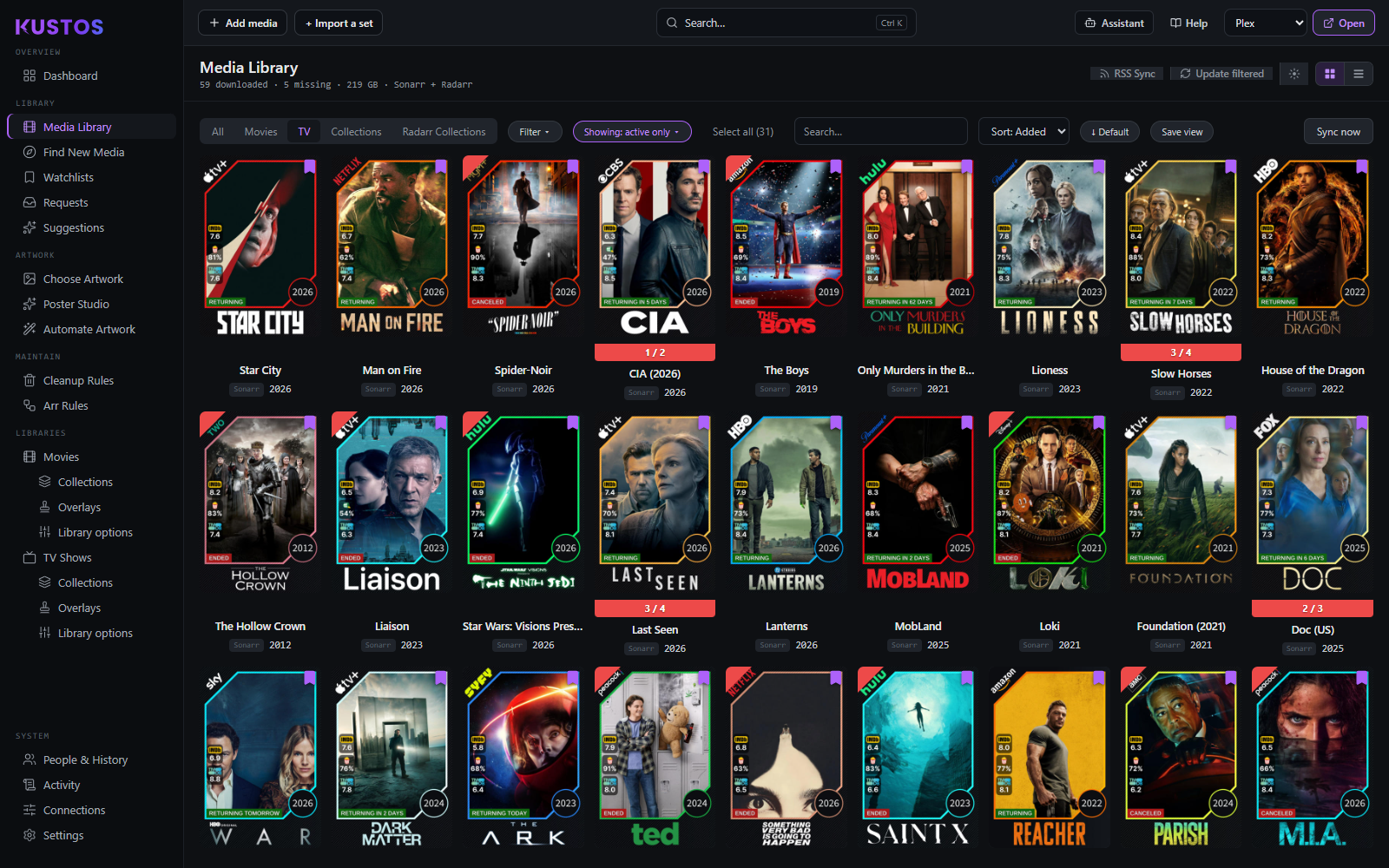
The everything view of what you own, across every managed Plex library. It is one list over every Sonarr and Radarr instance at once, which is the thing neither *arr can show you: a title held in both Radarr and Radarr-4K appears here as one title you own, not two rows to reconcile by hand.
Find the titles that are missing files
The task most people open this screen for. "Missing" means Kustos has the title but no file — a show you added and never grabbed, or an episode that failed.
- Press Filter.
- Set status to Missing.
- Leave the kind on All, or narrow to Movies or TV with the tabs along the top.
- Read the count in the header. It updates with the filter, so "109 missing" tells you the size of the problem before you touch anything.
- To act on them in bulk, select the rows and use Bulk edit — see the walkthrough below.
If nothing is missing but Plex disagrees, Kustos is reading the *arrs, not Plex. A file Plex cannot see but Sonarr has imported shows as complete here.
Change many titles at once
- Filter down to exactly the set you want. The bulk action applies to what is selected, so the filter is the safety step.
- Select the rows.
- Press Bulk edit and choose what to change: monitor or unmonitor, *arr options, Radarr collection monitoring, or delete empty collections.
- Confirm. Kustos sends the change and reports how many titles it changed.
Bulk is not atomic. Bulk edits go through the *arrs' own bulk editor, one call per Sonarr or Radarr instance. If one instance fails, Kustos stops and shows the error. Changes already sent to the other instances stay applied, so check the list before you retry.
Save a view you keep coming back to
Set the tabs, filter and sort the way you want them, then press Save view. It comes back the next time instead of being rebuilt by hand.
Every control on this screen
| Control | What it does | Watch out for |
|---|---|---|
| Tabs (All / Movies / TV / Collections / Radarr Collections) | Narrow to one kind. | Collections and Radarr Collections are different things — one is what Kustos builds, one is Radarr's own. |
| Filter | Kind, status (monitored, unmonitored, missing, wanted) and series state (continuing, ended). | Filters combine, so an empty list usually means two filters fighting. |
| Search | Free text over titles. | — |
| Sort | Title, year, size or recently added. | The arrow beside it flips direction. |
| Grid / list | Two views of the same set. | Grid shows artwork, which is how you spot a bad poster. |
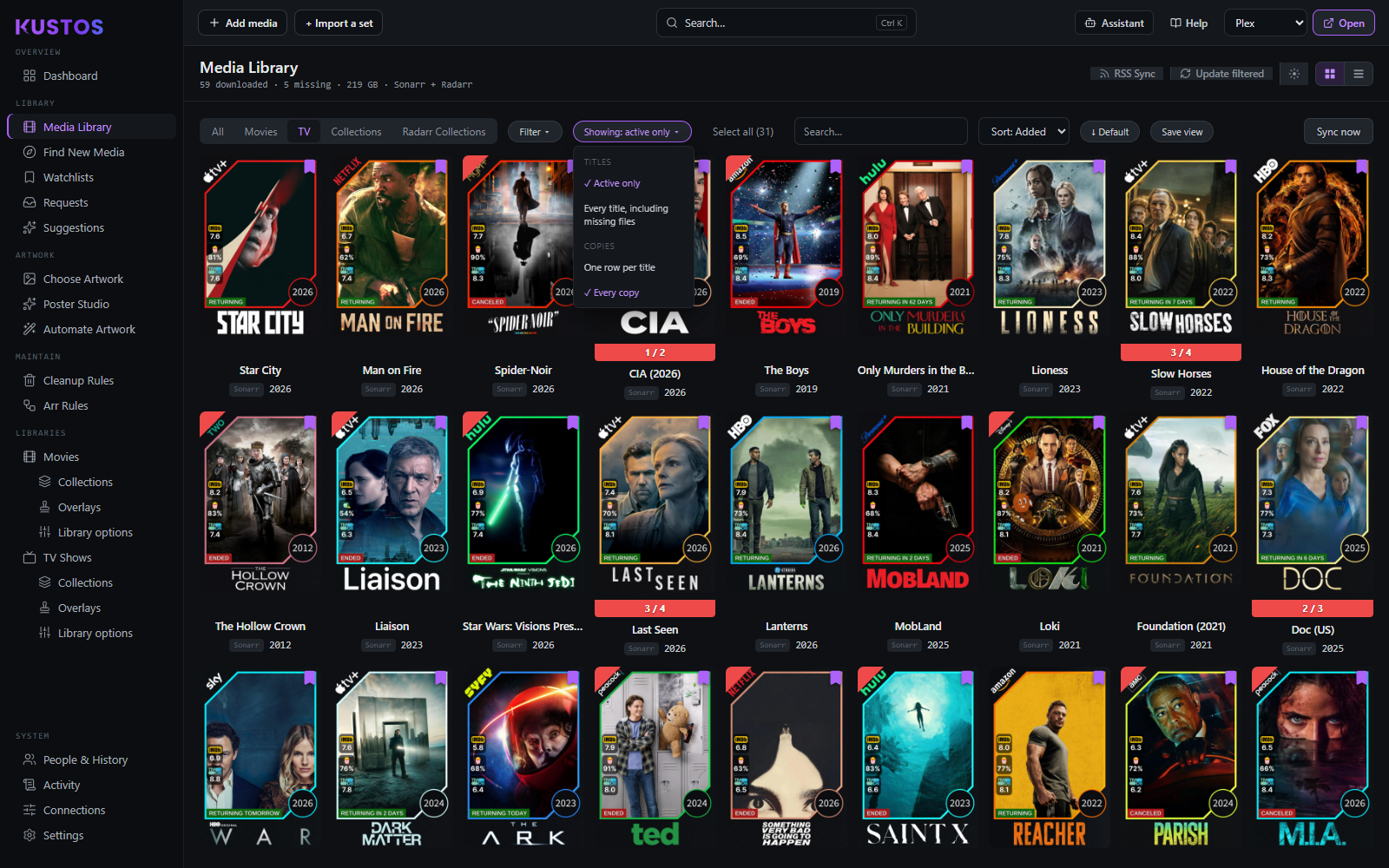
| Showing menu | Says what the list is showing, and changes it. Titles: Active only, or Every title, including missing files (still in Sonarr/Radarr, file gone). Copies: One row per title, or Every copy (the same title held by two *arr instances, such as a 4K and an HD copy). Needs an ID appears only when a title actually needs one. | The button names every choice that narrows the list, so a narrowed list never looks like the whole library. "Showing: everything" means nothing is hidden. |
| Save view | Remembers the current tabs, filter and sort. | — |
| Sync now | Re-reads the *arrs immediately. | — |
| RSS Sync / Update filtered | Triggers the *arrs' own jobs. | These act on the *arr, not on Kustos. |
| Add media | Search and add straight into Sonarr or Radarr. | — |
| Download queue (Activity → Downloads) | Per-row and bulk Remove and Import. | Import only applies to grabs that finished downloading but never made it into the library, so it is greyed out unless your selection contains some. |
Status colours. Complete is green, downloading amber, upgrade available blue, missing red. Upgrade does not mean a better release was found — it means the file sits below the quality profile's cutoff. Nothing has searched an indexer.
Ratings are filled in by a daily refresh from TMDB and MDBList, so a title added an hour ago may show none yet.
Removing a download defaults to the seeder-safe pair: drop the *arr's queue entry, leave the torrent seeding, do not blocklist.