



Poster Studio
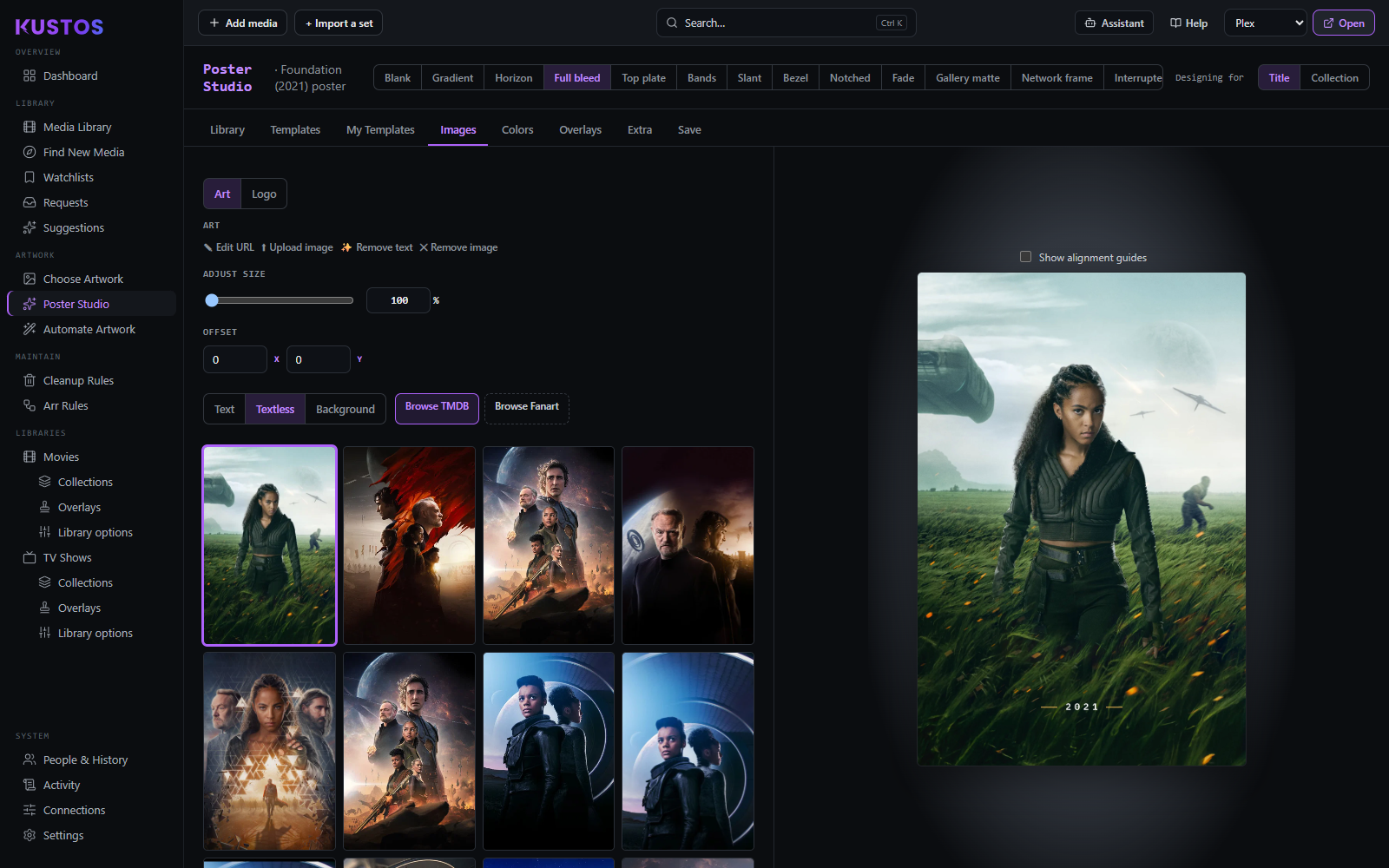
Design a new image rather than pick one.
Make your first poster
The one task most people come here for: take a title you already hold and give it a designed poster.
- Pick a title. Open the Library tab and search for it, or arrive from the Choose Artwork screen's ✦ Studio button, which brings the title with it. The title's existing posters appear on the left, and the preview on the right starts drawing.
- Pick a template from the strip across the top. The preview redraws by itself a second or so after you choose — you do not press anything. Click through a few; this is the fastest way to see what each one does to your art.
- Choose the art on the Images tab, and start with Textless. This is the step that decides whether the result looks designed or looks like a mistake, and it is the one people skip. On the Images tab pick the Art zone (Gradient has none: it draws no artwork). The Text / Textless / Background switch sits beside Browse TMDB and Browse Fanart, and filters what they offer: | Choice | What you get | | --- | --- | | Text | Posters with the title already printed on them. | | Textless | Only art with no baked-in title or language text. | | Background | Wide backdrops rather than posters. | Pick Textless, because the template is going to draw the title, the year, the network logo and the ratings itself. Start from art that already carries those and you get both — two titles, two year badges, two logos, slightly offset. Nothing warns you; it just looks wrong. > The trap that catches everyone once. A title whose current poster Kustos > already made loads that finished poster as the base. It is a poster, so it > passes as art — and it already has every badge the template is about to add. > If your preview has two of everything, this is why. Switch to Textless > and pick again. Each zone — art, lower art, logo, network logo — can then be dragged in the preview, rotated, resized or replaced with an upload. Browse TMDB and Browse Fanart widen the choice beyond what the title already has, and Remove text will strip lettering from an image you are set on keeping.
- Set the colours on the Colors tab. Leave them on Auto to sample each title's own art and logo, so a template applied across a library comes out different per poster instead of uniform.
- Add any text on the Extra tab: multi-line, placed against any of nine anchors, with its own offset, size, rotation and colour.
- Apply it from the Save tab. Applying writes the result as that title's Plex artwork straight away.
To reuse the design, save it on My Templates instead of only applying it, and give it matching rules — a default for a kind of title, or pinned to particular collections. That saved template is what Automate Artwork's auto-create draws with, so this is the step that turns one poster into a whole library's worth.
Every tab
Tabs: Library · Templates · My Templates · Images · Colors · Overlays · Extra · Save.
- Templates — poster and title-card layouts: Standard, Wide, Minimal, Divider, Rule, Headline, Frame, Corner wedge, Right panel, Center vignette, Matte, Diagonal cut, Left rule.
- Images — art, lower-art, logo and network-logo zones, each draggable and rotatable, each able to take an upload.
- Colors — text and frame colours with a preset swatch set. Auto samples each title's own art and logo, so the result differs per poster.
- Extra — a free-text layer: multi-line, 9-anchor placement, X/Y offset, size, rotation, colour.
- My Templates — save a design and give it matching rules (a kind default, or pinned to specific collections). This is what auto-create uses.
The rules are the feature, not the picture. A saved design applies to nothing until it has them, and there are more of them than this list suggests: auto-create on or off, which kinds it applies to, priority when two templates claim one title, per-season behaviour, the collection banner, and what to do when no logo can be found. Poster templates walks through building one and explains every rule.
Applying writes the result as that title's (or episode's) Plex artwork. Sample mode can save a template but can't apply — pick a real title first.