



Choose Artwork
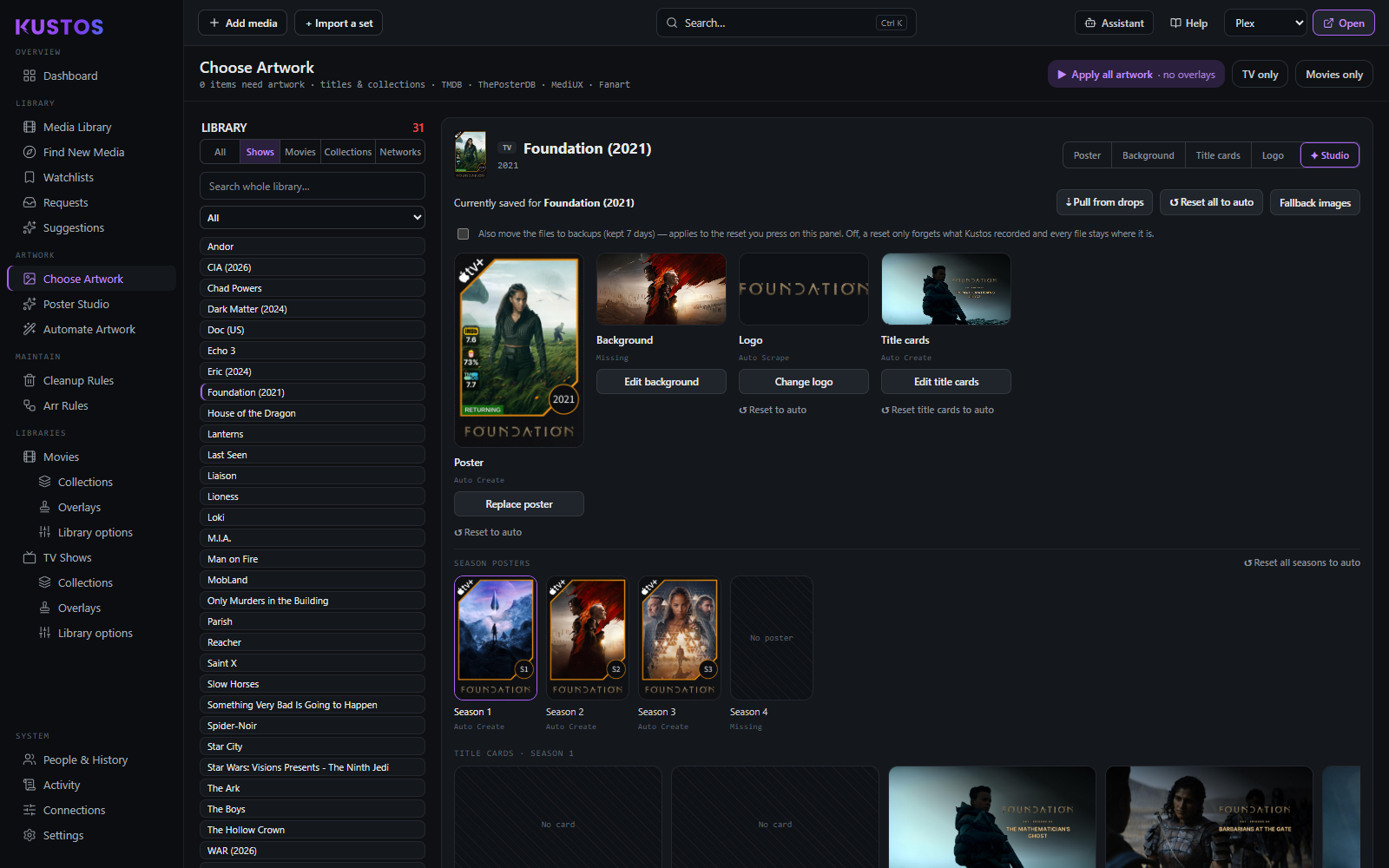
Pick an image that already exists, for one title. Where Poster Studio designs a new image, this one chooses between images somebody has already made.
Replace one title's poster
- Find the title. Use the All / Shows / Movies / Collections filter to narrow it.
- Choose the slot you are filling with the tabs: Poster, Background, Title cards or Logo.
- Browse what the sources offer — TMDB, MediUX, Fanart.tv, ThePosterDB and your own uploads all appear together.
- Click the image you want. It applies to Plex immediately.
Applying here marks the slot as your pick, so nothing scheduled overwrites it. That is the important part: a hand-picked image is safe from the nightly artwork jobs without you having to lock anything.
Work through everything that needs art
- Set the filter to Needs artwork.
- Work down the list, slot by slot.
What "Needs artwork" actually means. It is Kustos's own worklist: titles Kustos has not applied this kind of art to. It is deliberately not a read of Plex, because Plex auto-fills a backdrop for nearly everything, so asking Plex would report almost nothing missing and hide the work from you.
Titles not yet released or aired stay hidden until shortly before release, since "no file" is the correct state for them and listing them would bury the real work.
Some slots are not needed at all. Settings → Automation → Artwork sets the default: collections that already have a poster don't need a background or logo, so they read "Not needed — has a poster" instead of Missing. For any single title or collection, an empty Background or Logo slot on its Saved card has a Not needed tick. Ticked, that slot leaves the Needs artwork list and the Missing folders for that one item. It overrides the default either way, so you can also say one poster-carrying collection does need its background.
Import a whole set at once
- Press Import a set.
- Paste a MediUX set link, a single poster link, or a whole /user/ profile.
- Importing applies now, and records the set and its uploader so you can see later where an image came from.
Fill title cards from a folder instead
Drop a title_card.png into the show's assets folder rather than uploading one by one. A dropped image only fills episodes with no still, so it is a backstop rather than an override — it will not replace cards you already have.
The tabs and filters
| Control | What it does |
|---|---|
| Poster / Background / Title cards / Logo | Which artwork slot you are filling. |
| All / Shows / Movies / Collections / Networks | Narrow by kind. |
| Needs artwork / Has artwork | Kustos's worklist, or everything already done. |
How a title qualifies for a filter. A title is listed when the slot you have selected reads that word under the image. Title cards and season posters list a show when at least one of its cards or season posters does, so a show with both kinds appears under both. A slot reading Missing — never applied, reset, or a Kometa stock cover — is under none of them.
What the word under each image means
Every slot says where its current image came from, and that word decides what the nightly jobs are allowed to do with it.
| Word | Meaning |
|---|---|
| Auto Create | Drawn by one of your templates. The next auto-create run may redraw it. |
| Auto Scrape | Fetched from a source by the scheduled scrape, by uploader rank. Rescrapes can replace it. |
| Your pick | You chose it here. Nothing scheduled overwrites it. |
| Missing | Never applied, reset, or still wearing a Kometa stock cover. |
Set, Auto, and the difference that matters
Two buttons appear on most images and they do different jobs:
| Button | What it does |
|---|---|
| Set | Applies here and now, and marks the slot as your pick, so nothing scheduled overwrites it. |
| Auto | Adds it to Auto-Scrape only. Nothing is applied now — the next scheduled pass applies it, by uploader rank, and it will not replace your own picks. |
A poster showing "In Auto-Scrape" is enrolled and re-applies on schedule, but none of its images are in the slots yet.
To import a set by link use Import a set on the Artwork page — that route records the set and its uploader, which applying a single image does not.
The reset buttons, which differ more than their names suggest
All of them forget a recorded pick so the automatic chain can choose again. What they cover is the part to read carefully.
| Control | What it forgets |
|---|---|
| Reset all to auto | Every pick for this title — poster, background, logo, every season poster and every title card. |
| Reset to auto (one slot) | Just that slot. |
| Reset all seasons to auto | Every season poster on this show. The title poster and title cards are left alone — use Reset all to auto for those. |
| Reset title cards to auto | Every title card Kustos recorded for this show. |
| Remove (on a file) | Deletes your file for that poster, forgets the record, and lets the scrape fill it as Auto Scrape. Asks first. |
Also move the files to backups is a separate tickbox, and it changes what a reset means. Off, a reset only forgets what Kustos recorded and every file stays where it is. On, the matching files move into a dated backup folder beside them. That folder is deleted after the backup retention set in Settings (7 days unless you change it, or kept until you delete them if you choose that). Nothing is deleted at the moment of the reset.
The other controls on a title
| Control | What it does |
|---|---|
| Pull from drops | Applies everything dropped in the assets folder for this title now — poster, seasons, background — and redraws for a logo, title card or poster art. Each still has to win its slot on priority. |
| Fallback images | Posters Kustos has indexed for this title, plus a wider look on request. On a show, its Title cards row sets one image for every episode with no still of its own (Use as title-card fallback), saved into the show's folder as titlecard.png, the same file you would drop there by hand. Cards already drawn are not redrawn; the next title-card run picks it up. |
| Textless | Only art with no title baked in — the clean plate to put Kustos's own logo on. |
| Upload a logo | Uses a logo file from this computer. Saved as yours, so no refresh replaces it. |
The asset folder panel
Below the slots, Choose Artwork lists what is on disk for that title, split two ways. It is the clearest place to see the difference between the two artwork folders:
- Finished art — applied as-is. poster.png, logo.png and so on.
- Source ingredients — what Kustos builds your template with.
See Poster templates for which folder is which and why dropping a finished poster into the wrong one does nothing.
Indexing an uploader
On a ThePosterDB or MediUX poster, Index this uploader reads their pages only — it applies nothing. Their other titles become matchable afterwards. Progress shows in Activity → Tasks, under Running now.
Collections have two extra cases
- A TMDB collection's art can be told to stop being used for a collection. On a multi-franchise universe one member's art ends up standing in for the whole thing — use a ThePosterDB set instead.
- "Its movies don't agree on one" means the films in the collection point at different TMDB collections, so nothing there is verified.